Joining your Pilates class on Zoom
A simple, step-by-step guide
The daily classes run on Zoom, a free and widely used video app that lets you see the instructor and be seen in return, so you can follow along and get guidance in real time. No technical know-how is needed. This guide walks through everything, from installing the app to getting set up on the morning of class.
What works best for class
- A laptop, desktop computer or a tablet is ideal. The larger screen makes it much easier to see the instructor’s movements clearly.
- A phone works too, though the smaller screen makes following along harder. A phone stand helps a great deal here.
- A reliable internet connection matters more than a powerful or expensive device. Being near your wifi router gives the steadiest picture.
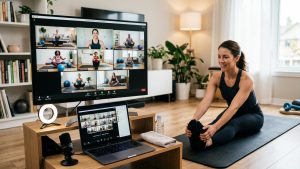
- Because the instructor can see you and offer corrections, it helps to position your device so the camera captures as much of your body and mat as possible.
Setting up your space
- Prop your device low down (on a chair, a step, or a stack of books) and angle it so the camera takes in your whole mat, or as much of you as possible.
- Keep the light in front of you rather than behind, so you are not left in shadow.
- Have a little clear floor space, your mat, and any small props the class uses to hand.
- Headphones are optional, but they make the instructor’s voice clearer and help avoid echo.
Installing Zoom
You do not have to install anything in advance. When you click the class link, Zoom will offer to set itself up. But installing it the day before makes the morning of class smoother and stress-free. Here is how.
- Open a web browser and go to zoom.us/download
- Find the main app (shown as “Zoom Workplace”, sometimes just “Zoom”) and click Download.
- Open the downloaded file and follow the on-screen prompts to install it.
- That is all. There is no need to create an account or pay anything to join a class.
- Open the App Store on Apple devices, or Google Play on Android.
- Search for Zoom. The app may appear as “Zoom Workplace” or simply “Zoom”.
- Tap Get or Install and wait for it to download.
- Again, no account is needed to join a class.
Joining your class
- A few minutes before the start time, open the joining link sent to you (in your welcome email, or on the class page).
- The link opens Zoom for you. If asked, choose Open Zoom or Join from the app.
- Type your name, so the instructor knows who has arrived.
- When prompted, allow Zoom to use your camera and microphone. This is what lets the instructor see you and guide your movement.
- Choose Join with computer audio (or Call using internet audio on a phone) so that you can hear.
- You are in. The class will begin shortly.
It is worth joining a couple of minutes early the first time, just to get settled.
During the class
- Keep your microphone muted unless the instructor asks otherwise, so background noise does not disturb anyone. Look for the small microphone icon to mute and unmute.
- Keep your camera on if you are comfortable, so the instructor can see your form and help you.
- Turn your volume up so the cues come through clearly.
- Switch to Speaker view so the instructor fills your screen. The view option sits in a corner of the Zoom window.
If something is not working
- No sound. Check the volume is up and that you joined with audio. Leaving and rejoining the class often fixes it.
- The instructor cannot see you. Check the camera is on, with no line through the camera icon, and that Zoom has permission to use it.
- The picture keeps freezing. Move closer to your wifi router, close other apps, and rejoin if needed.
- Echo or feedback. Use headphones, or make sure only one device in the room is connected to the class.
Ready to begin?
All you need to do is to book your first session with Luke.
Book with Luke
Pilates starts with an assessment, book online now

On this page...
Page navigation loading
It all starts here
Book your in-person session with Luke to discuss your goals, assess how your body moves and learn the class routine.
Book with Luke
Pilates starts with an assessment, register for a callback now